
Step 1: Choose a template
Use a ready-made layout instead of a blank canvas.
Browse ready-made templates for blog featured images, Open Graph previews, social posts, and thumbnails. Open any template in the editor, customize the copy, and export a clean image.
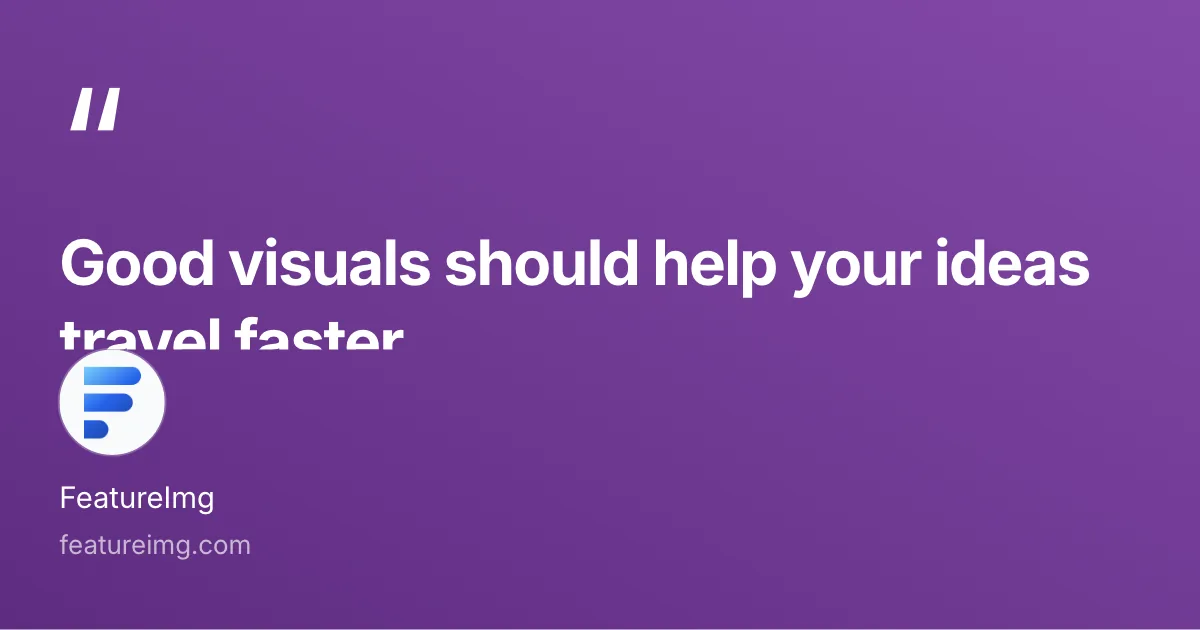
Square and vertical quote covers with author attribution
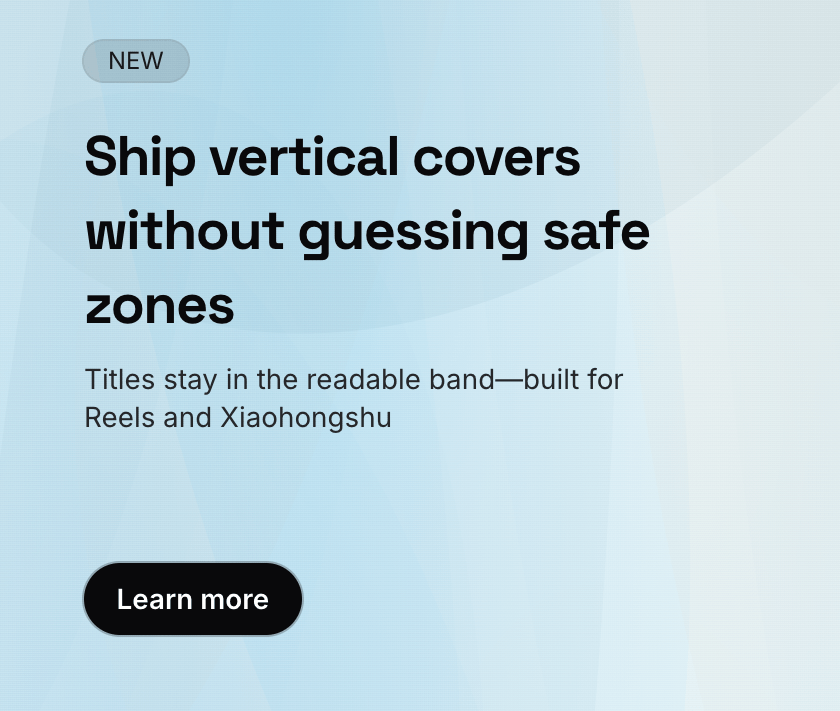
Reels and note covers with a badge and headline up top
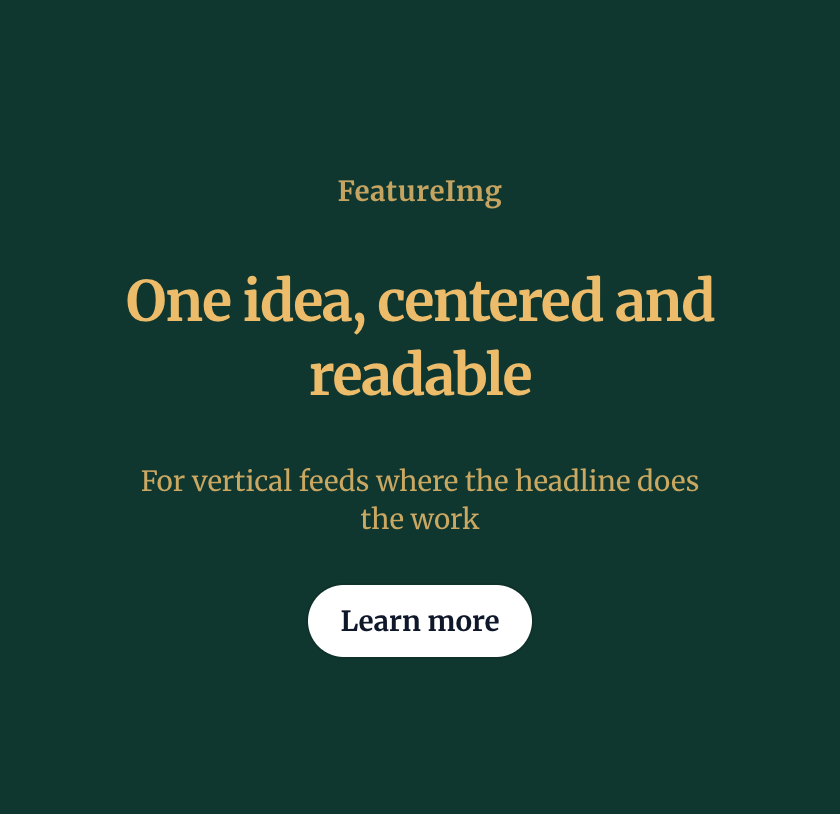
Copy-led vertical covers with centered headlines
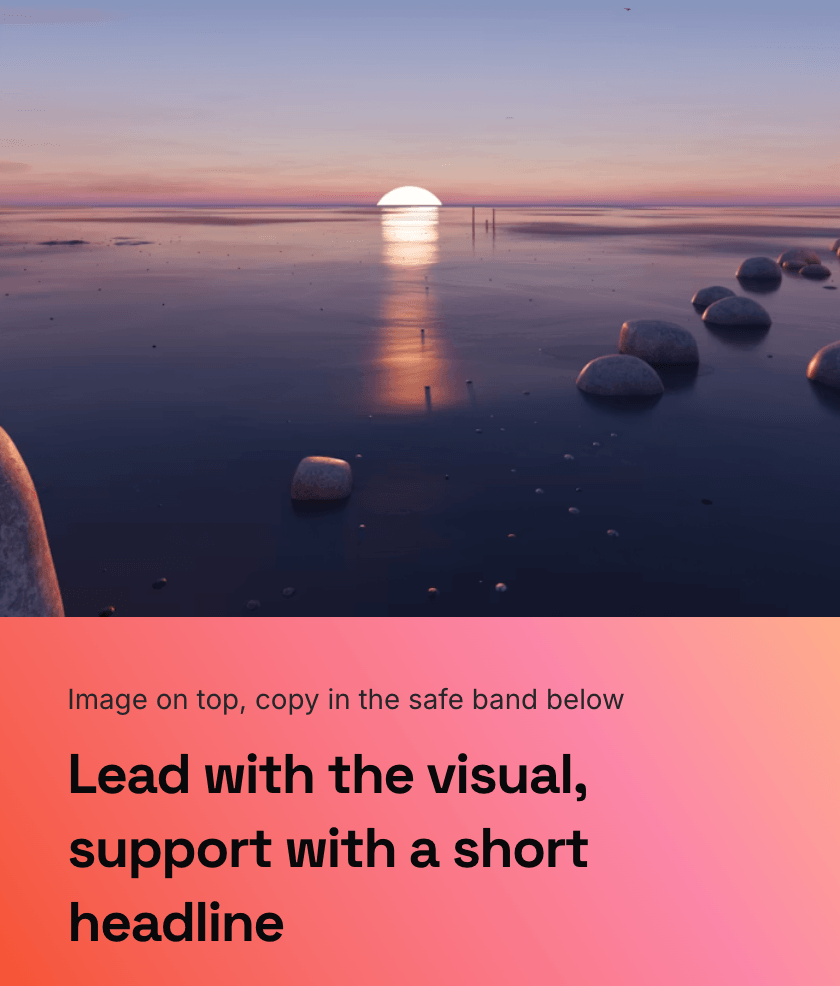
Visual-first vertical covers with text below the hero image
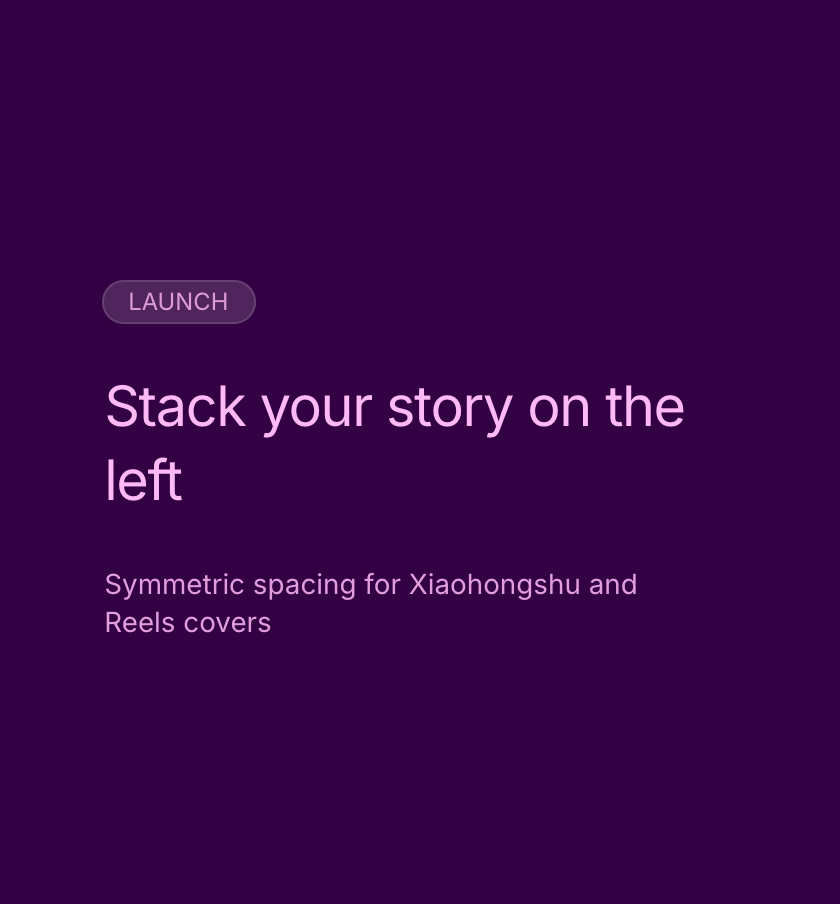
Left-aligned badge, title, and subtitle stacked in the vertical center of the canvas
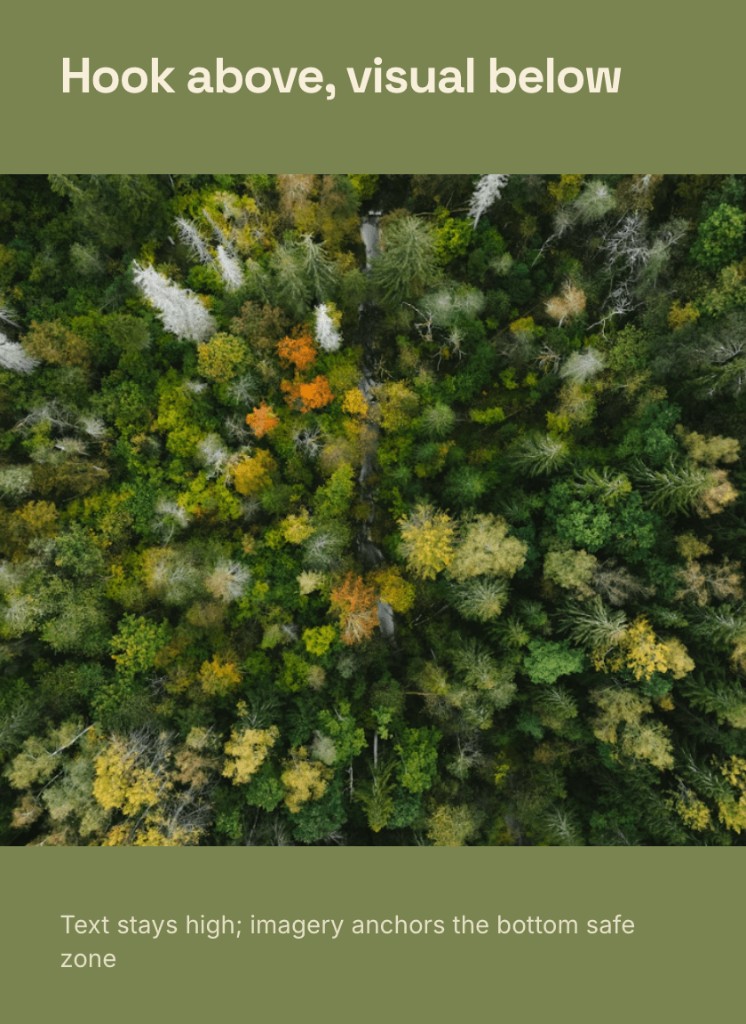
Headline on top with a large image in the lower zone
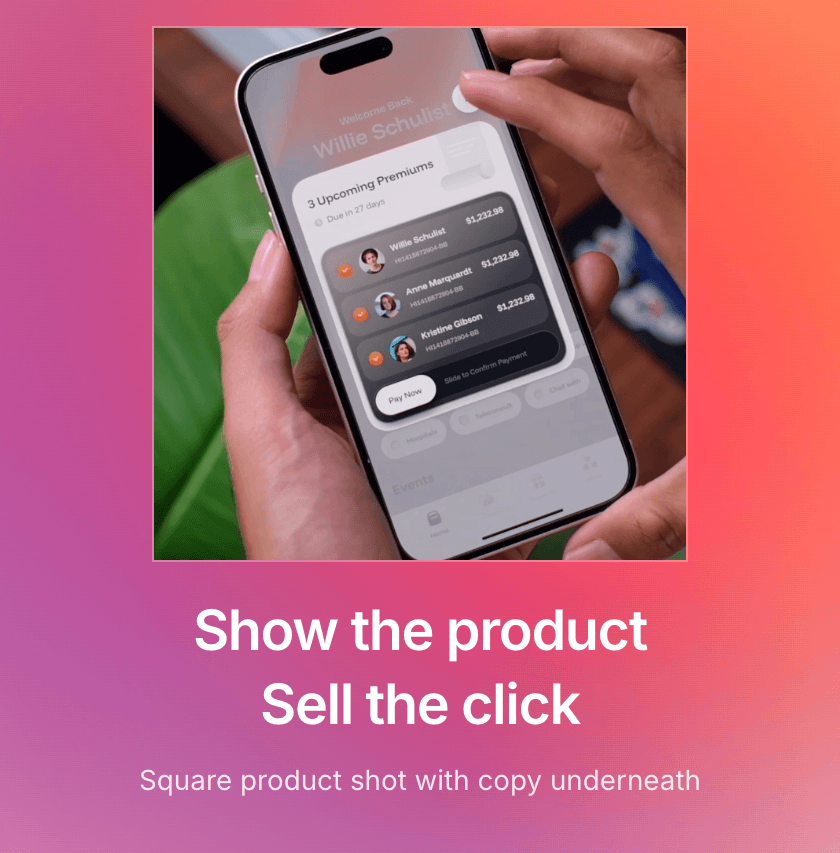
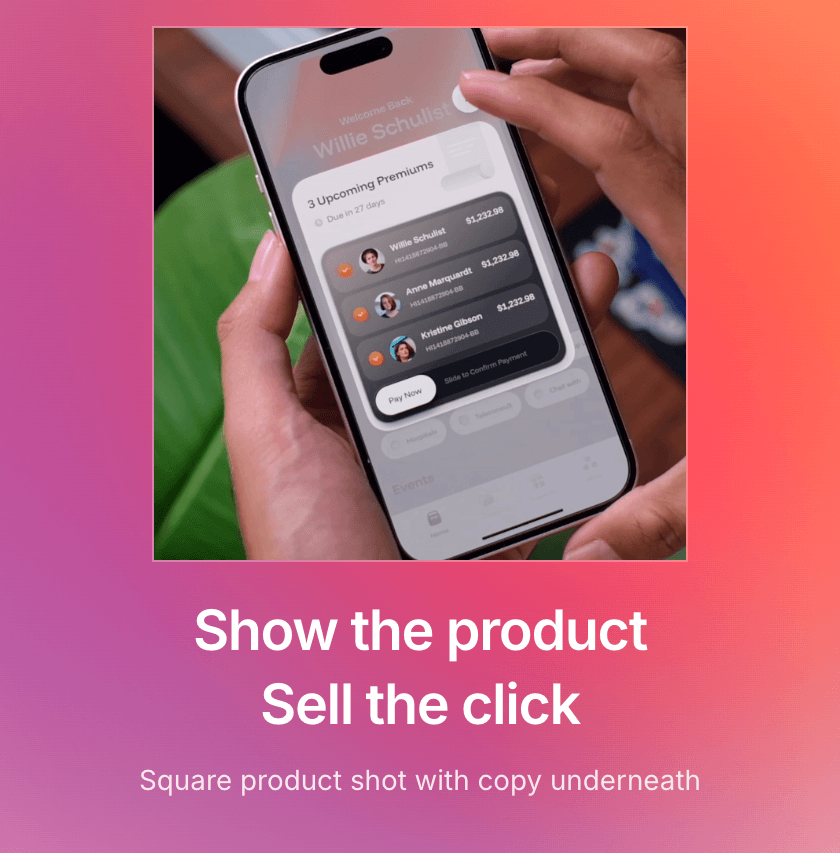
Card-style product shots with title and optional CTA
Centered badge and copy above a square product card
Simple workflow
Skip the blank canvas. Start with structure, customize the details, and export a publish-ready image.
Use a ready-made layout instead of a blank canvas.
Edit the headline, details, and styling to match your message.
Download PNG, JPEG, or WebP when you're ready to publish.
Templates handle layout, typography, and copy slots. When you open one in the editor, you pair it with a format preset so the export matches the channel you publish to, with no manual resizing.
Start from a blog featured image, Open Graph, YouTube thumbnail, LinkedIn post, X post, podcast cover format, or browse all formats.