
OG image size = 1200 × 630 px (~1.91:1). That is the practical default for rich link previews on blogs, landing pages, and product launches.
Getting the open graph image size right keeps your headline readable, your branding intact, and your layout from being cropped in odd ways when a URL is shared.
What size should an Open Graph image be?
| Recommended | 1200 × 630 px |
| Aspect ratio | ~1.91:1 |
| Main use case | Link previews for blog posts, landing pages, and social shares |
Meta’s Images in Link Shares guidance recommends images that are at least 1200 × 630 for high-resolution displays, with a practical minimum around 600 × 315, and asks you to stay close to a 1.91:1 ratio so Feed crops less. FeatureImg’s Open Graph format exports at 1200 × 630 so you design on that canvas without a separate resize step.
Need to create one? Use the OG Image Generator—templates stay on the correct canvas so you export without guessing dimensions.
What is an Open Graph image?
An Open Graph image is the picture platforms pull from your page metadata, usually through the og:image tag defined by the Open Graph protocol. It appears in link previews on social networks, messaging apps, Slack-style tools, and many CMS preview panels before publish.
The image does not replace your page content. It is a compact visual summary: often a title, a short subtitle, and simple brand cues. Because previews are small, size and contrast matter more than decorative detail.
Recommended Open Graph image size
The most widely compatible OG image size for new projects is 1200 × 630 pixels. That ratio is close to 1.91:1, which matches Meta’s guidance and LinkedIn’s recommended 1.91:1 preview ratio (Make your website shareable on LinkedIn).
| Label | Dimensions | Aspect ratio | When to use |
|---|---|---|---|
| Standard OG (recommended) | 1200 × 630 px | ~1.91:1 | Default for blogs, SaaS pages, and landing pages |
| Minimum practical | 600 × 315 px | ~1.91:1 | May look soft on retina displays; avoid if you can |
| Square (platform-specific) | 1200 × 1200 px | 1:1 | Only when a channel explicitly requires square art |
If you are comparing open graph image dimensions across tools, prioritize matching aspect ratio first, then meeting or exceeding 1200 px width for the wide layout.
Metadata tips: width, height, and caches
After you upload the file:
- Set
og:imageto the final absolute HTTPS URL. - Prefer also setting
og:image:widthandog:image:height(1200 and 630) so crawlers can lay out the card without waiting to download the file (Open Graph protocol structured properties). - Set
og:image:altto a short description of the image content. - For X, the same 1200 × 630 file usually works with
twitter:card=summary_large_imageandtwitter:image. - Re-check Slack, LinkedIn Post Inspector, or Meta’s Sharing Debugger after you change the image—caches can keep the old card until refreshed.
Why 1.91:1 works well for social previews
Wide rectangles match how most link cards are laid out: image on top or left, title and URL beside or below. A consistent ratio reduces accidental letterboxing (empty bars) or center crops that cut off your headline.
A fixed canvas also speeds up production. You design once at the correct og image size, export, and reuse the same layout family for product updates, changelog posts, and blog announcements.
Where OG images appear
You will see Open Graph previews in places such as:
- Facebook and LinkedIn link shares
- iMessage and other chat link unfurling
- Slack and team chat link previews
- Some newsletter and CMS “social preview” panels
- Developer tools that read
og:imagewhen debugging metadata
Each client may crop slightly differently, which is why safe margins and readable type size matter more than pixel-perfect edge alignment.
Best practices for Open Graph images
Keep the title readable. Aim for a short headline (often five to eight words). Preview thumbnails are small; long sentences become illegible.
Avoid text near the edges. Stay inside the central area of the frame. Badges, rounded corners, and automatic crops can clip corners.
Use strong contrast. Light text on a busy photo often fails after compression. Solid backgrounds, simple gradients, or a clear text panel usually hold up better.
Keep brand elements simple. A logomark, one accent color, and a single font style read better than a full brand guidelines poster squeezed into a preview.
Choose a compatible file type. Prefer PNG or JPEG for og:image. Meta’s webmaster docs list image/jpeg, image/gif, and image/png for og:image:type. WebP may work in some clients, but test the live preview before relying on it.
Preview before publishing. Use your platform’s sharing debugger or share a private link to confirm the image, title, and description together.
Common mistakes
Wrong ratio. Uploading a tall portrait or square image into a wide OG slot leads to crops you did not intend.
Too much text. Body copy belongs on the page, not on the preview image. One headline and optional subtitle is enough.
Low contrast. Thin gray text on pastel backgrounds disappears at small sizes.
Relying on random images. Pulling any page image into og:image often produces off-brand or cropped results. A dedicated OG asset performs better.
How FeatureImg helps you hit the right size
FeatureImg is built around preset formats so you stay on-canvas while you design:
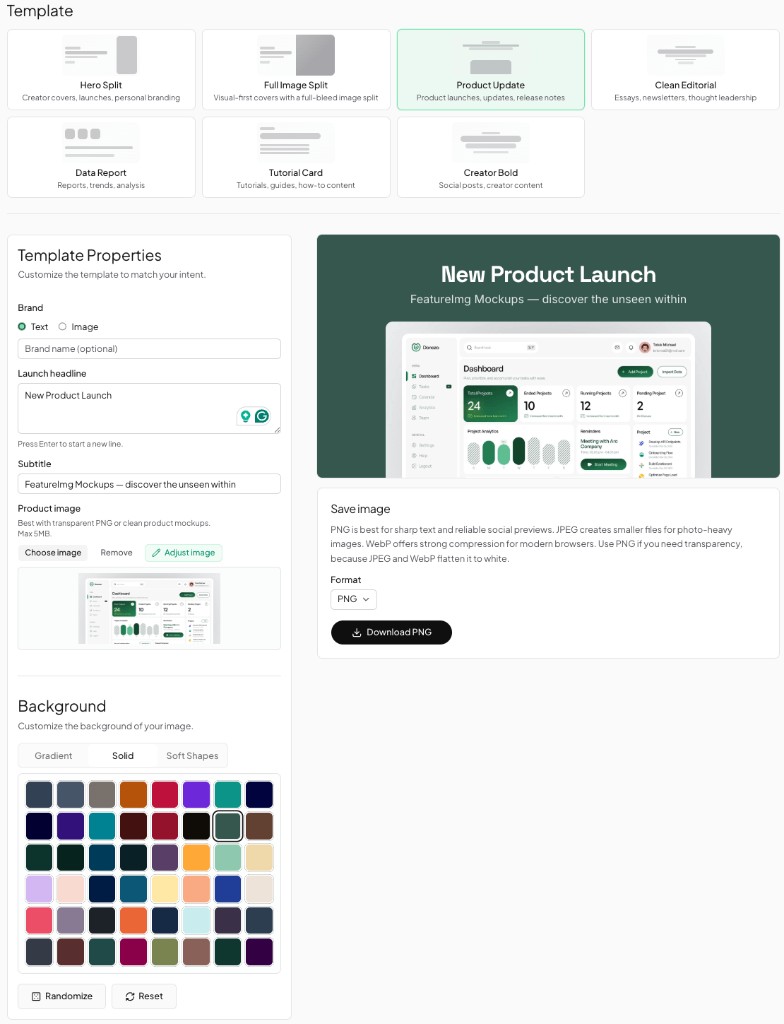
- Open the Open Graph format with the canvas locked to 1200 × 630.
- Pick a template that matches your tone (editorial, product update, minimal, and others).
- Edit the title and subtitle fields tied to the layout.
- Choose a background that keeps text readable.
- Export a PNG or JPEG at 1200 × 630 px ready for your site metadata.
Open Graph vs blog featured images
Both formats in FeatureImg currently use 1200 × 630 px, but they serve different jobs. An OG image supports link previews when a URL is shared. A blog featured image supports CMS cover slots on listing pages and article headers.
If your theme uses the same aspect for both, you can reuse styling, but many teams still export two files when crops or text density differ. For cover-specific guidance, see the blog featured image size guide.
Quick export checklist
- Design at 1200 × 630 px (FeatureImg OG format).
- Export PNG or JPEG for the widest link-preview compatibility. Use WebP only after you confirm the target clients render it.
- Upload the file to your host or CDN.
- Set
og:image,og:image:width,og:image:height, andog:image:altto the final absolute URL and image description. - Re-check the preview after deploy; caches can take time to refresh.
For layout inspiration by page type, see Open Graph image examples.
Create your next OG image
Use the size that platforms expect, keep copy minimal, and preview before you ship. When you are ready to design, start from the OG Image Generator.