
Strong open graph image examples show what works at thumbnail scale before you publish. This guide groups practical layouts by page type, explains what makes a good link preview image, and points to templates you can try in FeatureImg.
All examples assume the standard OG canvas: 1200 × 630 px. For exact dimensions and metadata tips, see the Open Graph image size guide.
What makes a good Open Graph image
A good social preview image does three jobs at once:
- Readable at small size. One dominant headline survives compression and cropping.
- Honest summary. The preview matches what the page delivers.
- Consistent brand. Repeatable layout families make your links recognizable over time.
Open graph image design is not poster design. You are optimizing for a wide card roughly the size of a phone notification, not a full-screen hero.
Blog article preview example
Best for: essays, guides, thought leadership, SEO content.
Traits: generous whitespace, one clear headline, optional subtitle, restrained background.
Why it works: readability survives compression. The preview feels calm next to noisy feeds.
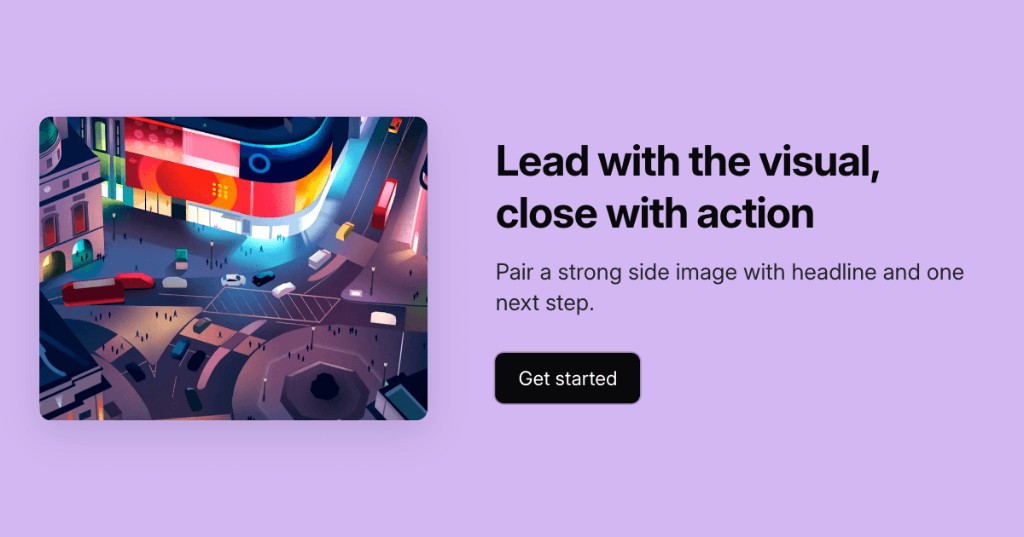
Try the clean editorial template when the post is text-first. Keep the OG headline shorter than the article H1 if the H1 is long.
Product launch preview example
Best for: feature launches, changelog highlights, SaaS announcements.
Traits: short headline, optional badge line (“New”, “Launch”, “Update”), structured hierarchy.
Why it works: scanners recognize “update” patterns quickly in link preview image examples.
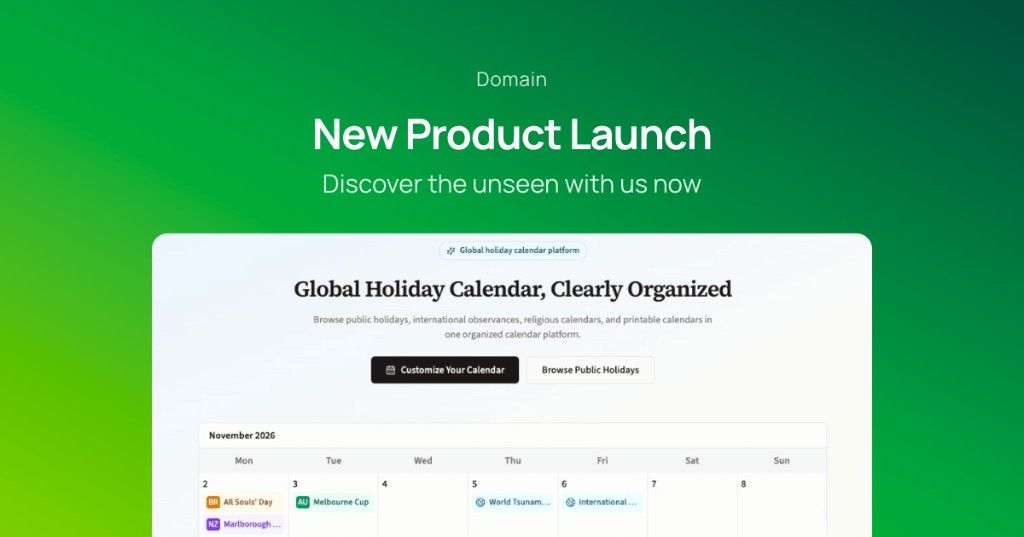
The product update template is built for this rhythm. One promise per frame.
Feature announcement preview example
Best for: roadmap items, beta invites, capability highlights.
Traits: bold title, single supporting line, strong contrast, minimal clutter.
Why it works: the preview must communicate “what shipped” before the reader opens the page.
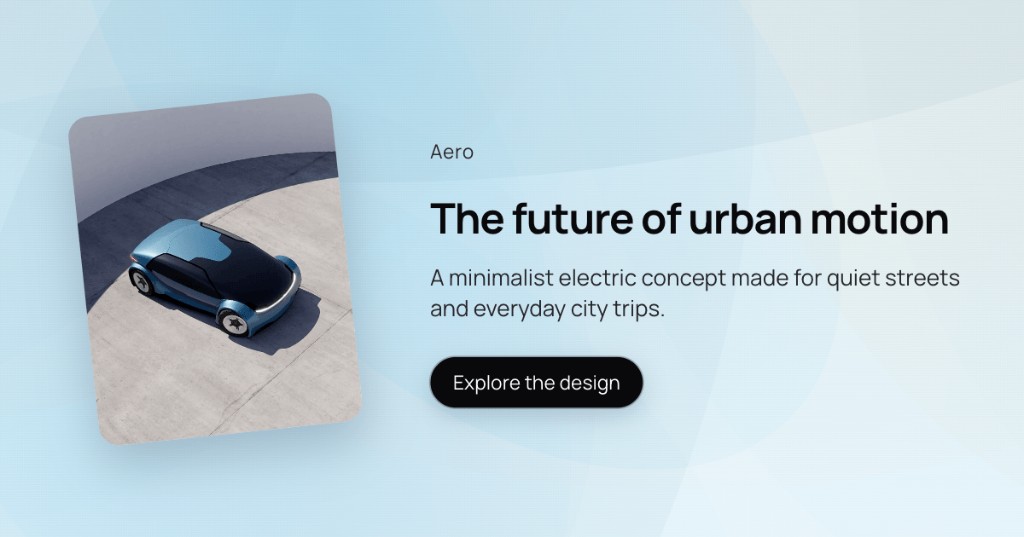
Creator-style bold titles or hero split layouts (text panel plus visual) work well when you have a screenshot or product still.
Guide or tutorial preview example
Best for: how-to posts, walkthroughs, checklists promoted on social.
Traits: instructional headline (“How to…”, “Guide to…”), calm background, optional step count or duration in the subtitle field.
Why it works: readers recognize educational content from the preview alone.
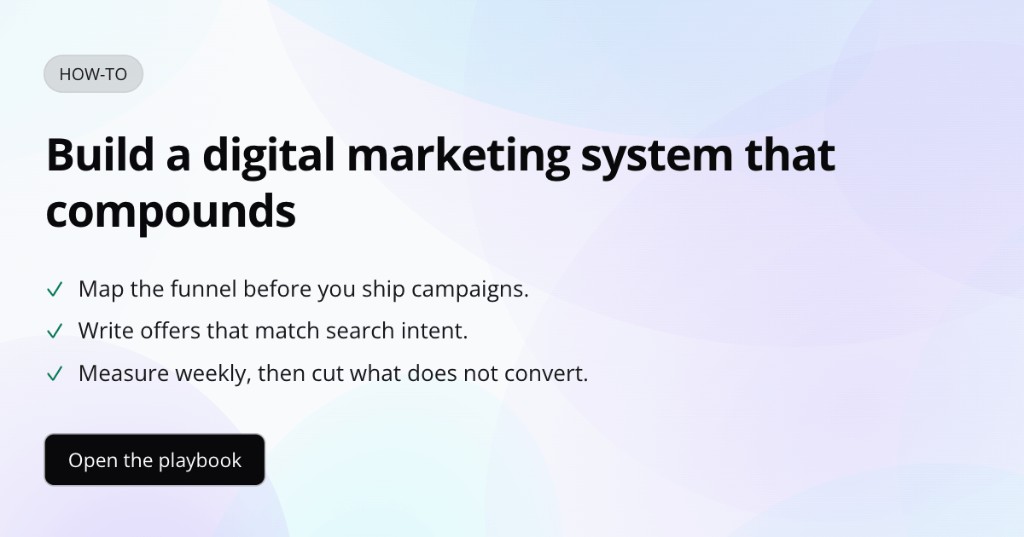
Avoid pasting full step lists on the image. Put steps in the article; keep the OG frame to one line.
Newsletter or editorial preview example
Best for: opinion pieces, curated issues, editorial brands.
Traits: serif or editorial typography feel, muted palette, one thesis line.
Why it works: editorial previews benefit from restraint. The headline carries the story.

Match the tone of your newsletter subject line without duplicating it word for word.
Visual split example
Best for: posts with a hero photo, screenshot, or product still.
Traits: image zone plus text panel (full image split layout).
Why it works: you get visual proof without sacrificing readable type.
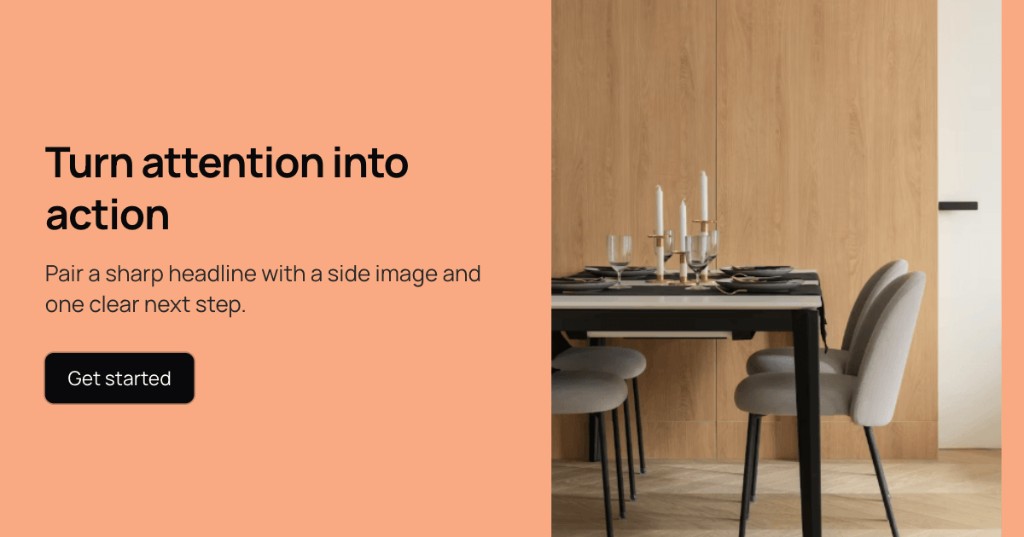
Keep text on the panel, not on top of busy screenshot regions.
Common Open Graph image mistakes
- Copying the full article title into the OG frame when it is too long for a preview
- Low-contrast text on gradients or photos
- Too many logos, badges, and labels competing at thumbnail size
- Ignoring the size guide and exporting the wrong ratio
- Never checking the live share card after publish
- Using square art where a wide 1.91:1 preview is expected
- Treating the OG image as optional when social and chat traffic matter
- Relying on WebP for
og:imagewithout testing Meta, LinkedIn, and other clients first
How to create an Open Graph image with FeatureImg
FeatureImg keeps you on the correct Open Graph canvas: pick a template, edit copy, and export without manual resizing.
- Open the Open Graph format for export size context.
- Pick a layout that matches the examples above.
- Edit title and subtitle fields; preview at small size in the editor.
- Export PNG or JPEG at 1200 × 630 px for the widest link-preview compatibility, then add the file to your page metadata.
For a full creation walkthrough, see how to create an Open Graph image.
FAQ
What are good open graph image examples to copy?
Start with one headline, strong contrast, and a layout family that matches your post type: editorial for essays, product update for launches, split layout for screenshot-led stories.
How is OG image design different from a blog hero?
OG images are displayed in external link-preview cards, while blog heroes are rendered inside your site. Their dimensions may match, but the viewing context differs. Open graph image design prioritizes one scannable line, not full-bleed marketing art.
Can I use the same file as a blog featured image?
Sometimes, if both use a similar wide ratio. FeatureImg exports 1200 × 630 px for OG and blog featured presets. Confirm your CMS expects the same dimensions before reusing one file.
Does FeatureImg generate OG tags for my site?
No. FeatureImg exports the image file. You still add og:image (or your CMS social preview field) on the page, ideally with width, height, and alt as described in the Open Graph protocol.
Where can I see more layout ideas?
Read the Open Graph image size guide for dimensions, then open the Open Graph format to try templates that match the examples above.
Ship previews that match your posts
Pick an example style that fits the story, apply the layout habits above, and preview before you share. Consistent og image examples in your workflow make blog links and landing pages look deliberate across every channel.