



Step 1: 选择模板
使用现成布局,而不是空白画布。
浏览适用于博客精选图、Open Graph 预览、社媒帖与缩略图的现成模板。在编辑器中打开任意模板,自定义文案并导出干净图片。
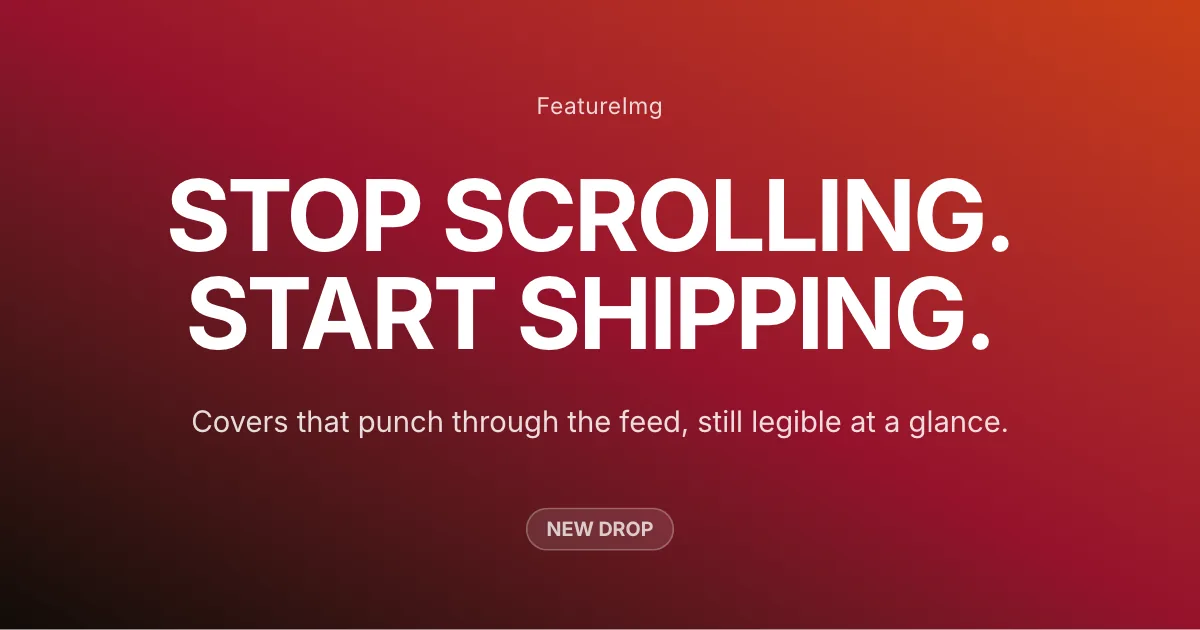
Creator covers, launches, personal branding
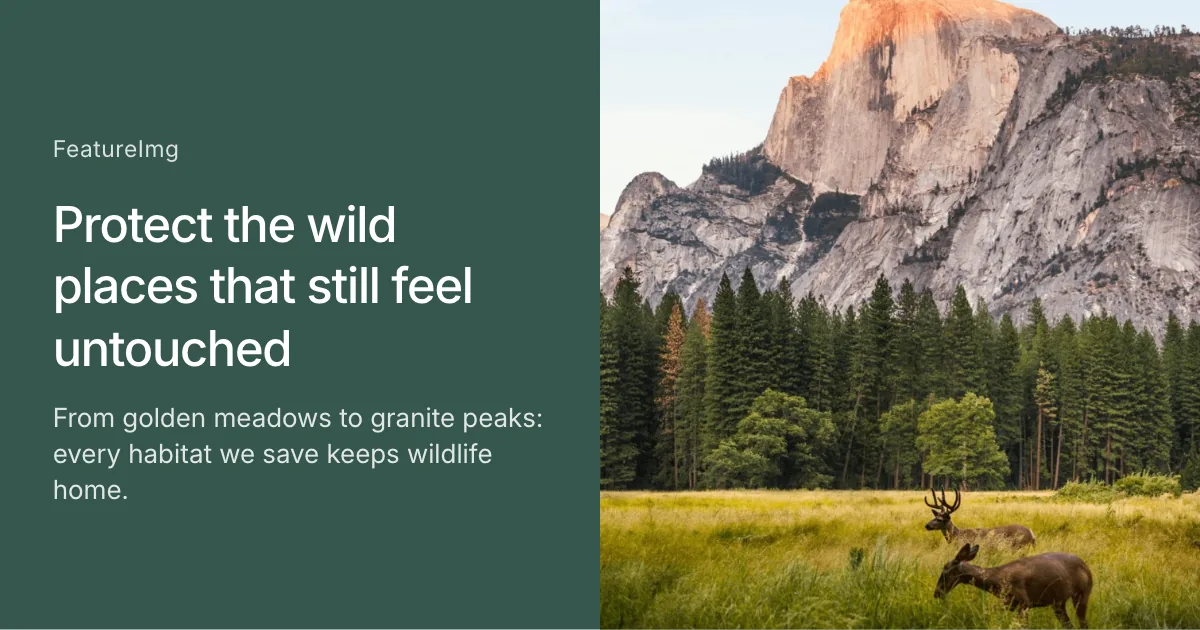
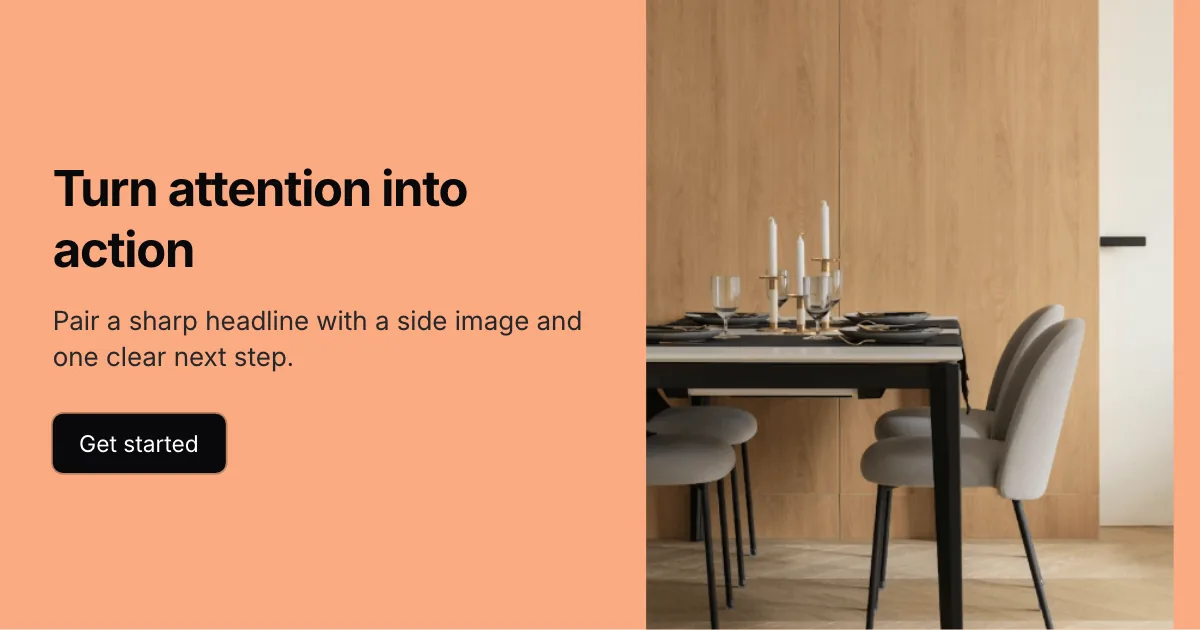
Visual-first covers with a full-bleed image split
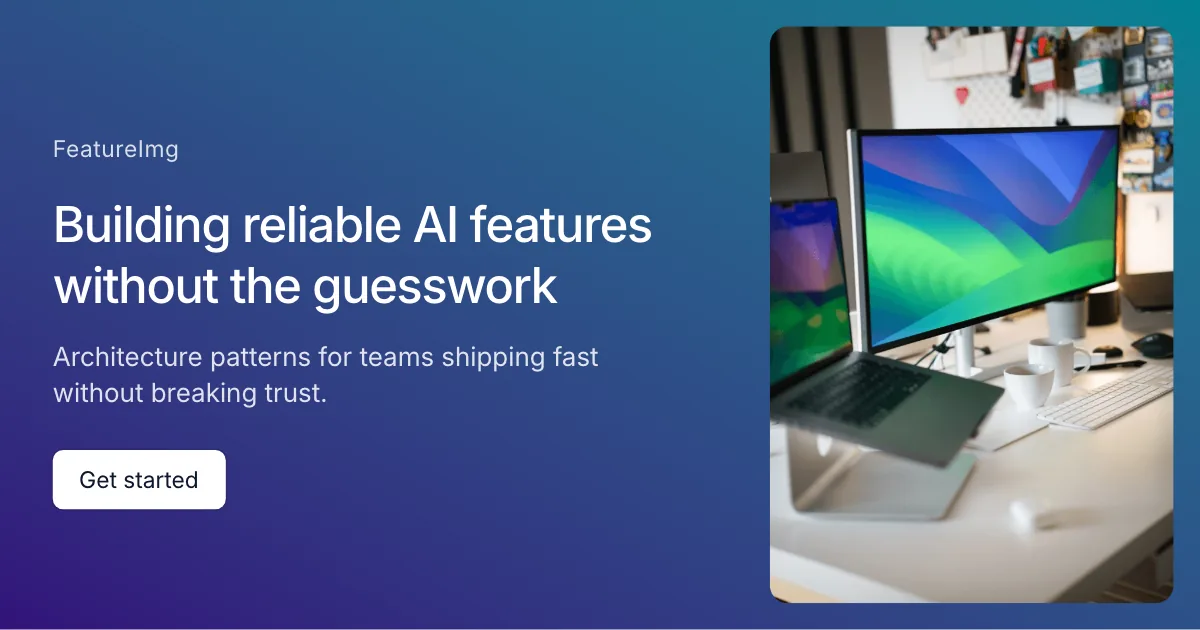
Launch posts with a headline and clear call to action
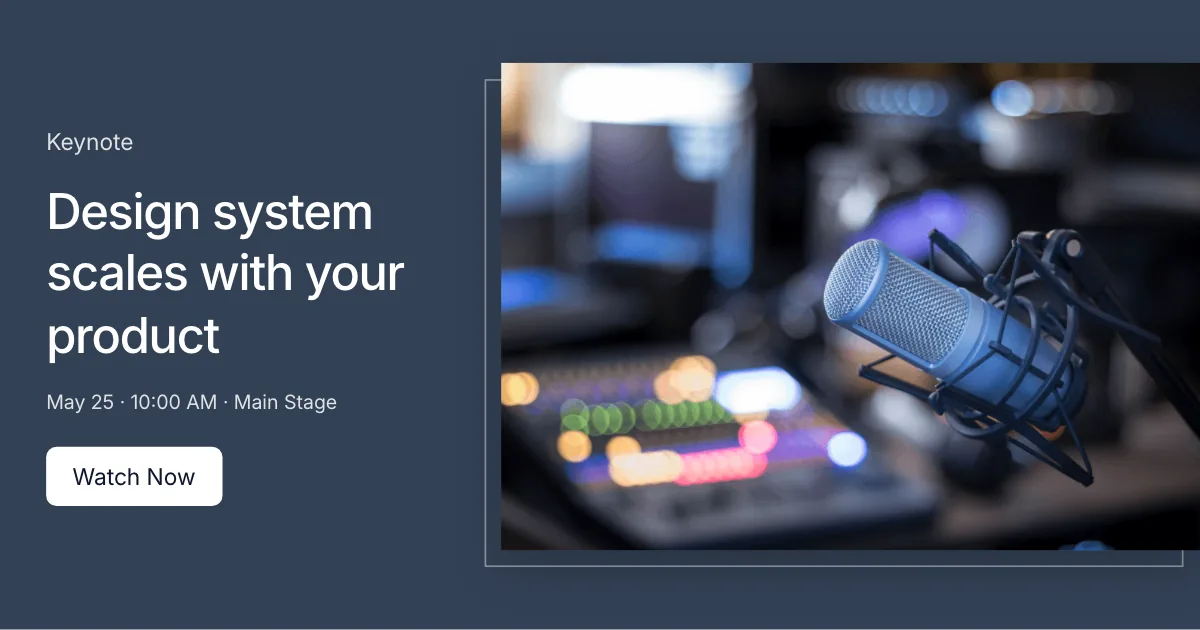
Keynote and talk covers with a wide side media panel
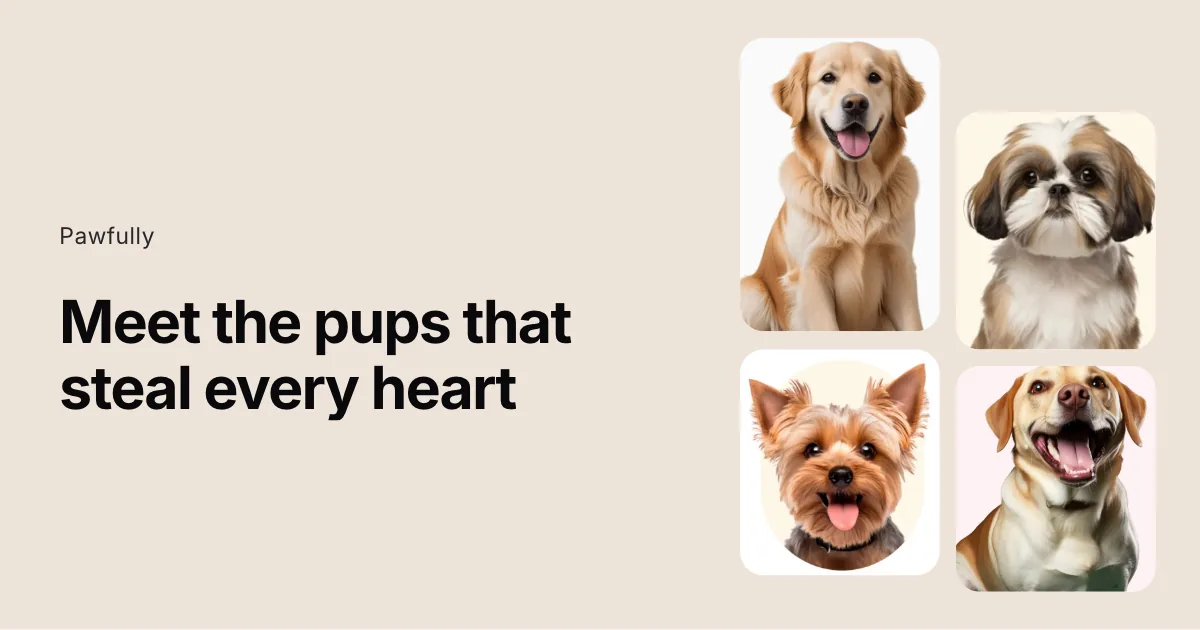
Product stories with a staggered four-card media stack
Brand-led stories with a hero image and supporting copy
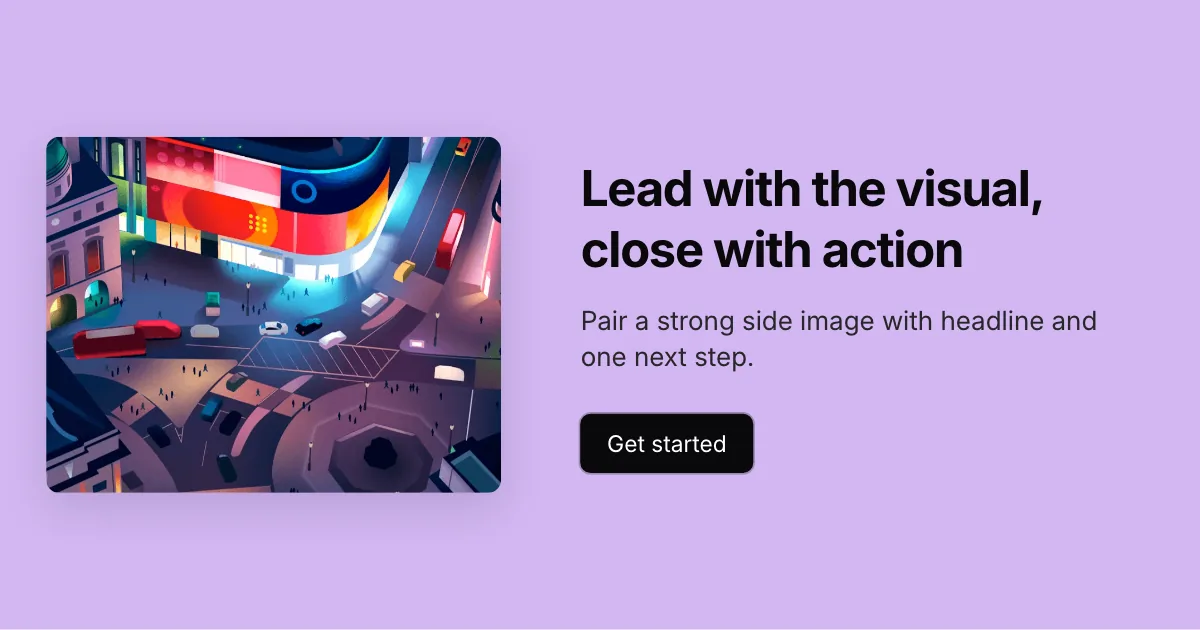
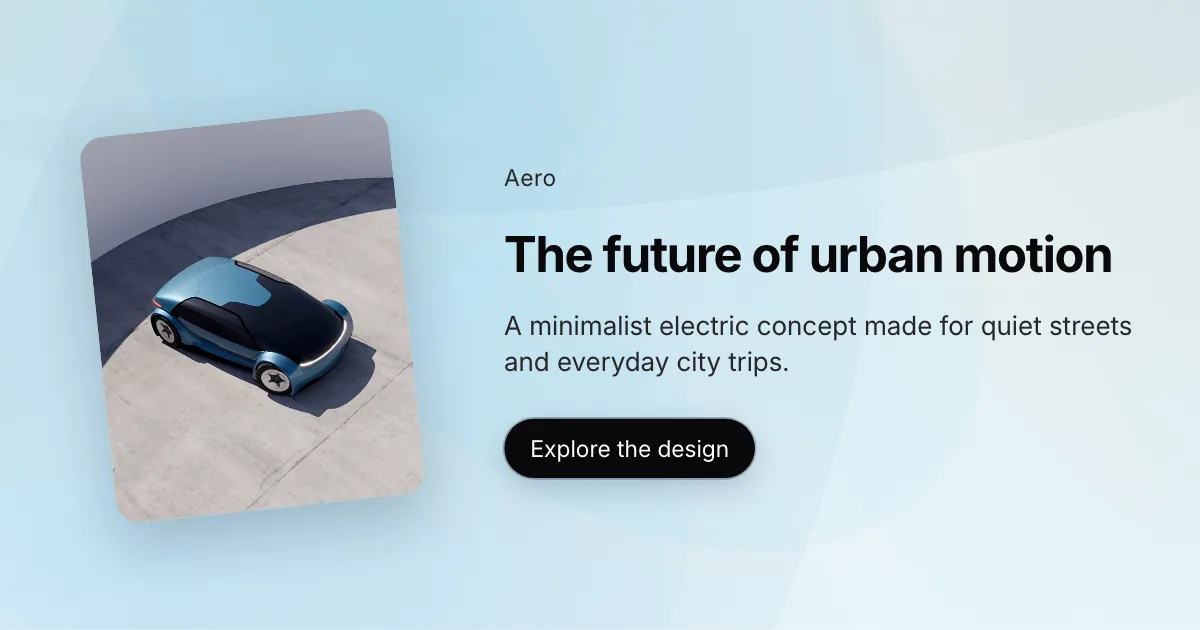
Visual-led covers with copy and a clear CTA on the right
Playful launches with a tilted product visual
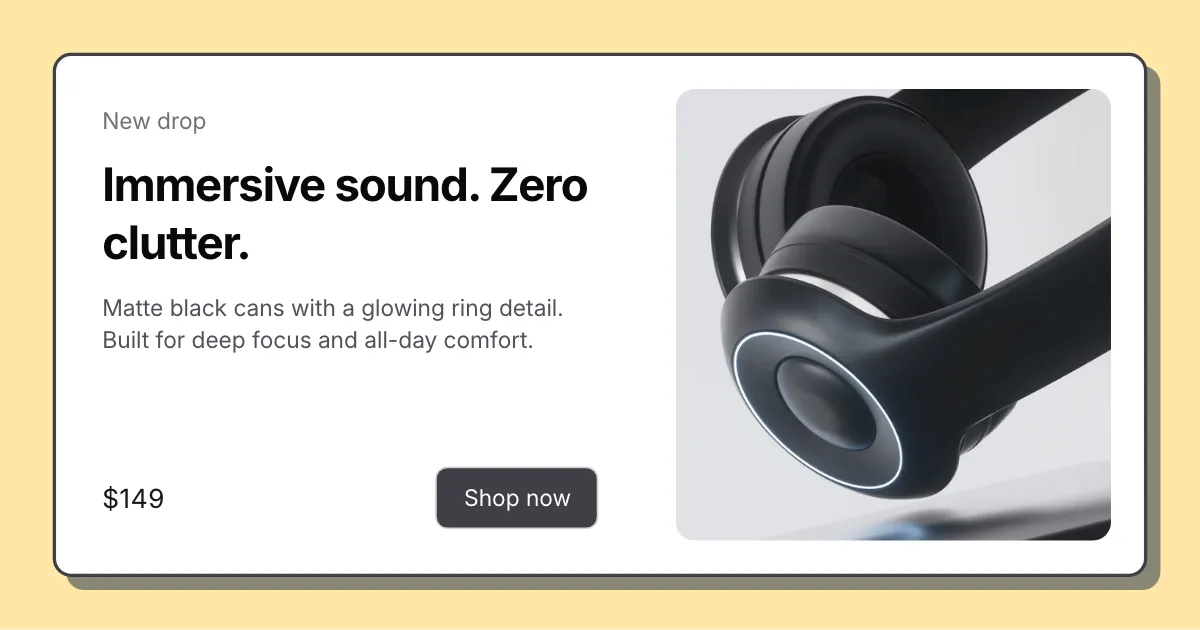
Offer and launch cards with a bordered white panel and shadow
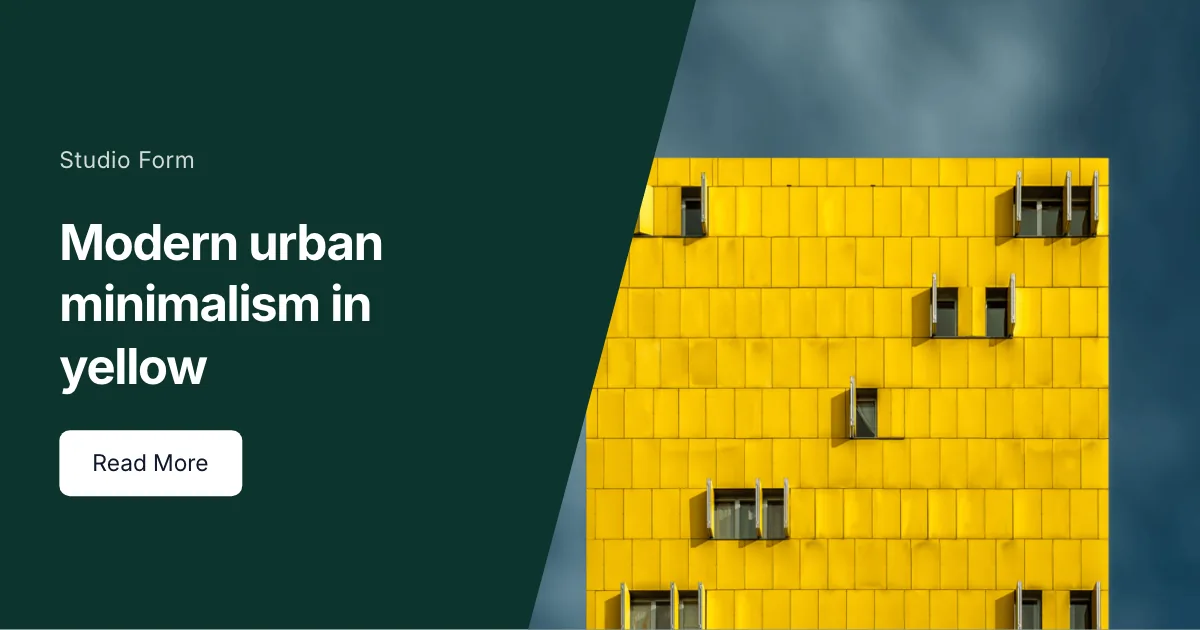
Bold launches with a diagonal text-and-image cut
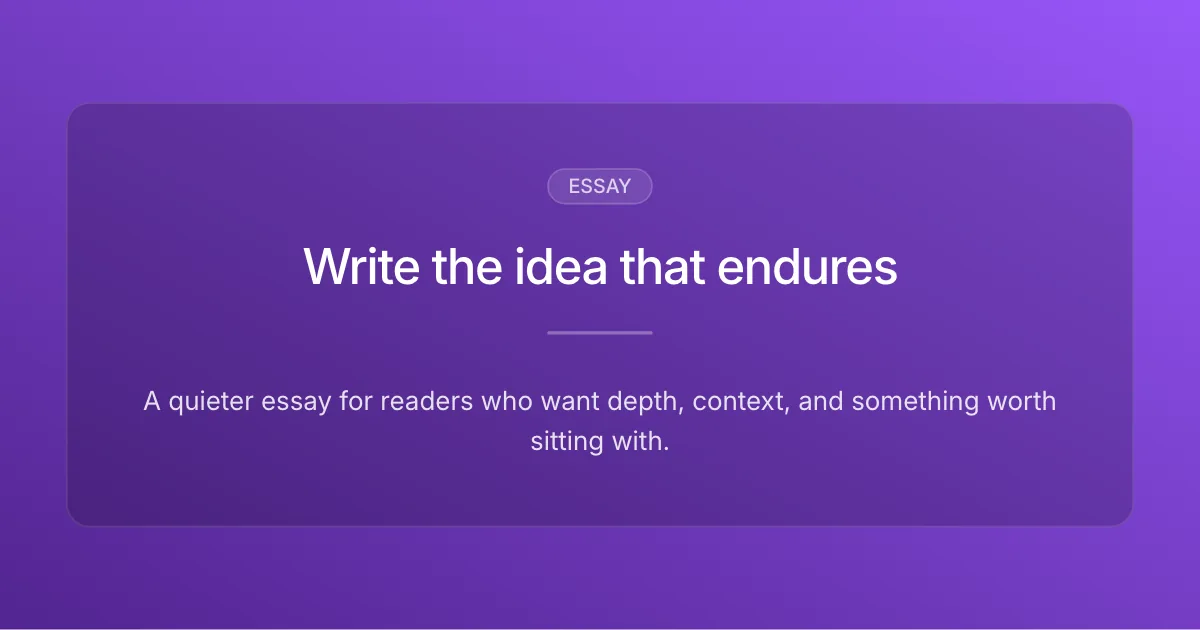
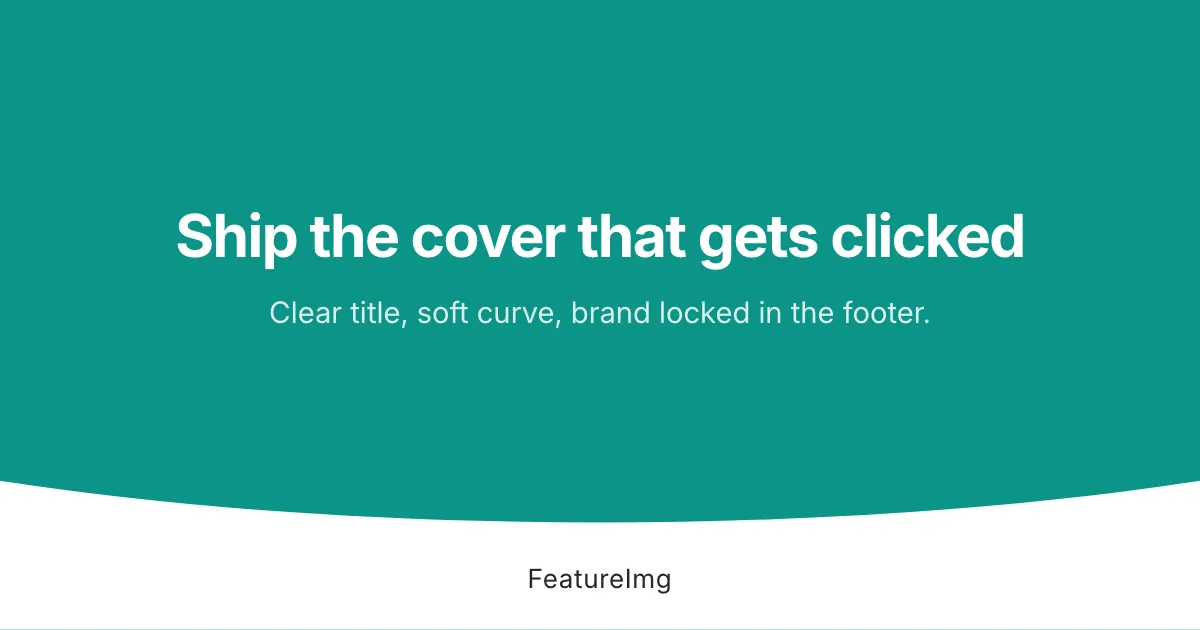
Essays, newsletters, thought leadership
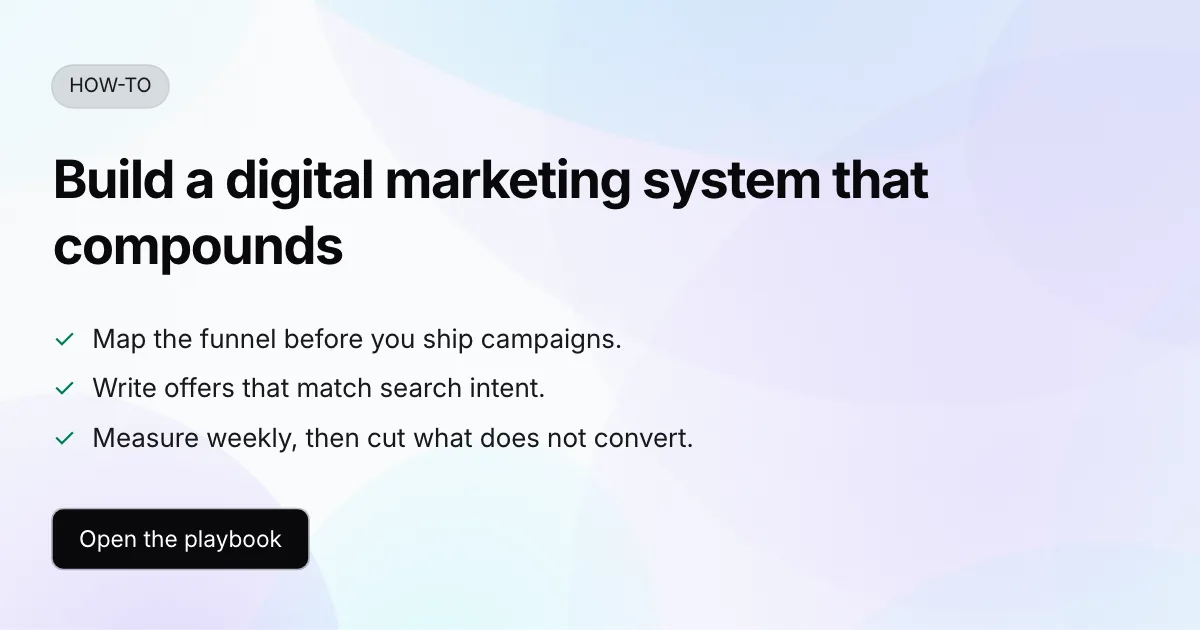
Tutorials, guides, how-to content
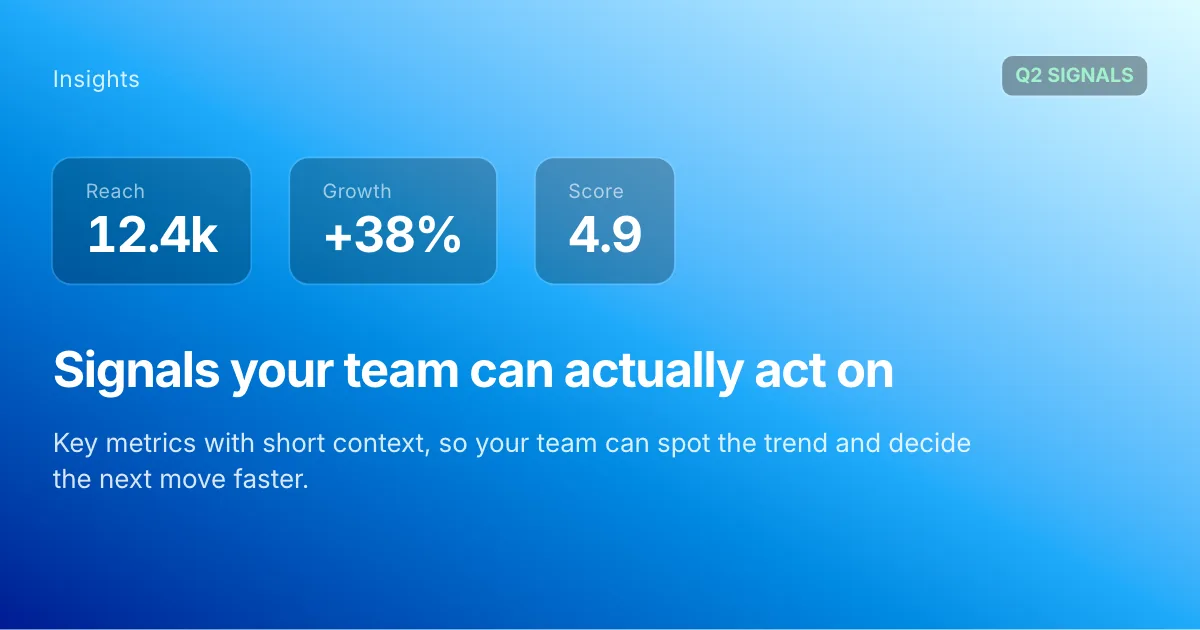
Reports, trends, analysis
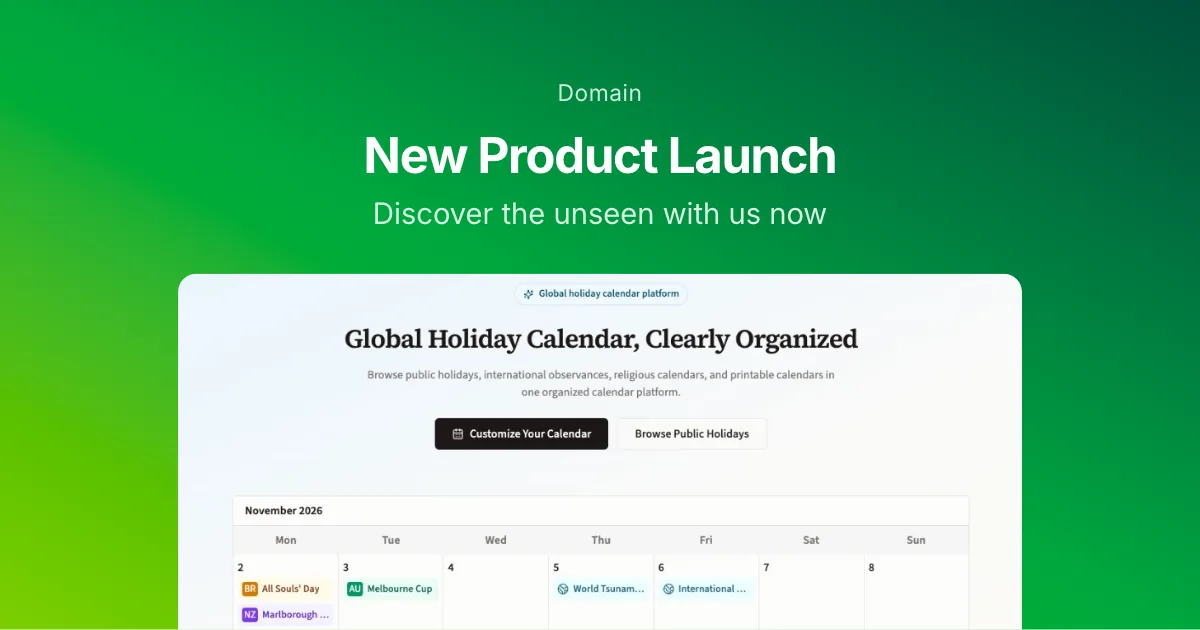
Product launches, updates, release notes
Social posts, creator content
Tweet-style quotes with author attribution
Square and vertical quote covers with author attribution
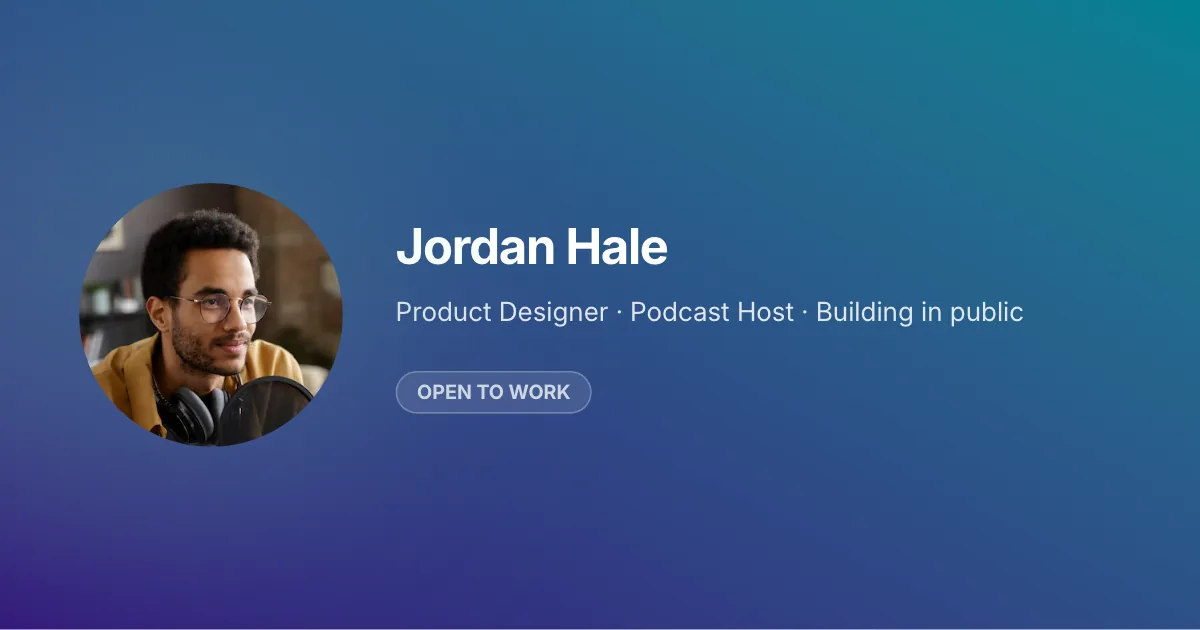
Profile cards with avatar, headline, and badge
Reels and note covers with a badge and headline up top
Copy-led vertical covers with centered headlines
Visual-first vertical covers with text below the hero image
Left-aligned badge, title, and subtitle stacked in the vertical center of the canvas
Headline on top with a large image in the lower zone
Card-style product shots with title and optional CTA
Centered badge and copy above a square product card
简单流程
跳过空白画布。从结构开始,调整细节,导出可发布的图片。
使用现成布局,而不是空白画布。
编辑标题、细节与样式,使其匹配你的信息。
准备发布时下载 PNG、JPEG 或 WebP。
模板负责布局、字体与文案槽位。在编辑器中打开时,会与格式预设配对,使导出尺寸匹配发布渠道,无需手动缩放。
从 博客精选图, Open Graph, YouTube 缩略图, LinkedIn 帖子, X 帖子, 播客封面 格式开始,或 浏览全部格式.